

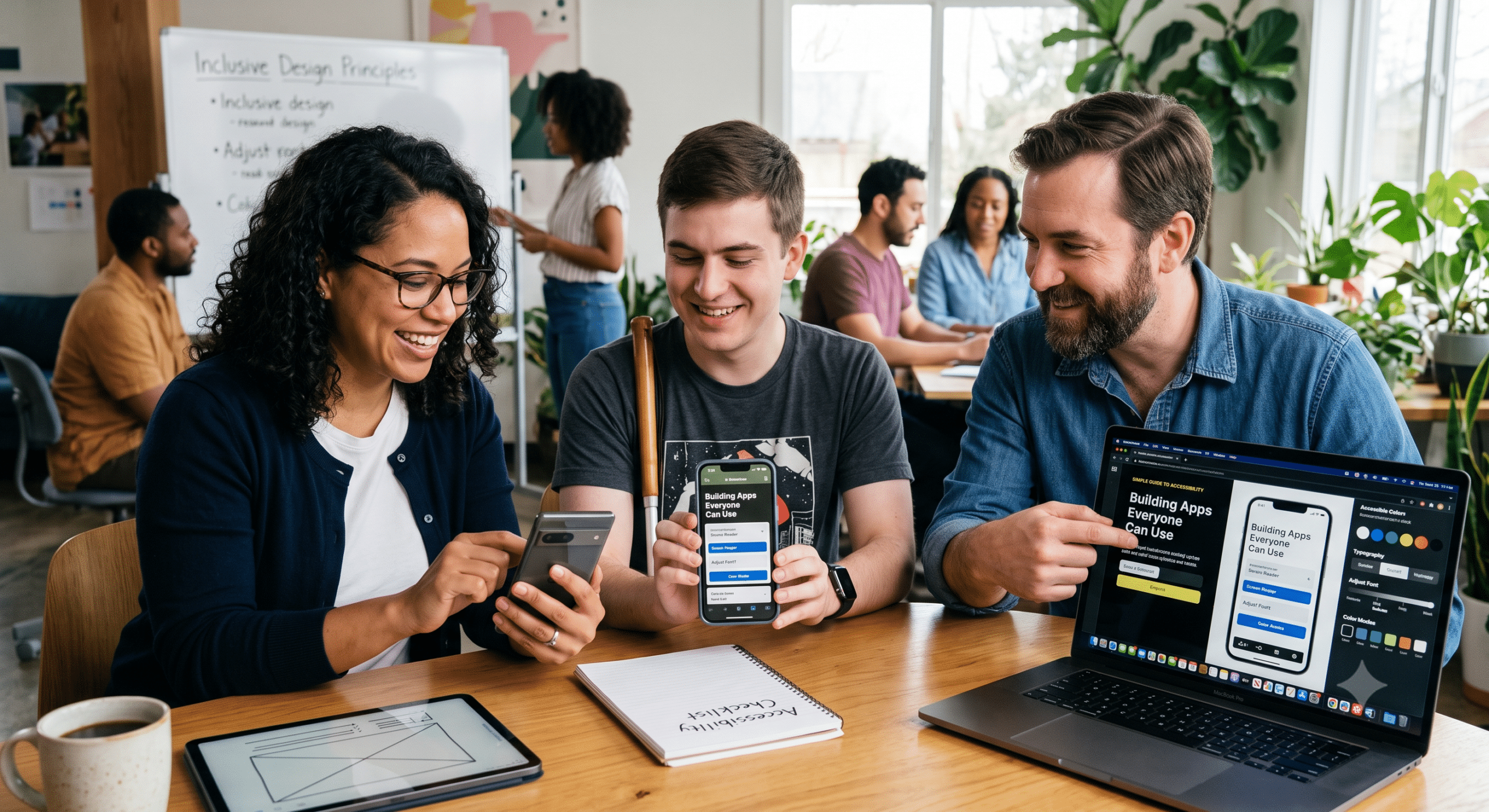
Mobile app accessibility is no longer just a nice feature to have. Instead, it has become an important part of creating apps that everyone can use, regardless of age, ability, or disability. Whether you’re building an app for shopping, banking, healthcare, education, or entertainment, making it accessible helps ensure every user has a positive experience.
Today, billions of people rely on smartphones every day. Among them are users with vision loss, hearing impairments, limited mobility, learning disabilities, and temporary injuries that can make using an app more challenging. Consequently, when developers design with accessibility in mind, they create products that work better for everyone—not just people with disabilities.
Furthermore, many businesses discover that accessible apps lead to higher user satisfaction, better reviews, improved customer loyalty, and compliance with accessibility regulations. Ultimately, accessibility is not simply about meeting legal requirements. Rather, it’s about providing equal access to information and services.
To help you navigate this topic, this guide explains everything you need to know about mobile app accessibility, including why it matters, how it benefits businesses and users, and practical ways to make your app easier for everyone to use.
What Is Mobile App Accessibility?
In short, mobile app accessibility refers to designing and developing applications so people with different physical, sensory, cognitive, or temporary limitations can easily use them.
To achieve this, an accessible app must work well with assistive technologies such as:
Screen readers
Voice control
Magnification tools
Closed captions
Alternative input devices
Switch controls
In addition to these technologies, accessibility considers users who experience:
Low vision
Complete blindness
Color blindness
Hearing loss
Limited hand movement
Dyslexia
Cognitive disabilities
Temporary injuries like a broken arm
For example, someone who cannot see the screen should still be able to navigate every feature using VoiceOver on iPhone or TalkBack on Android. Likewise, a user with limited hand movement should be able to complete tasks using voice commands or switch controls without frustration. In essence, accessibility focuses on removing barriers that prevent users from successfully interacting with your application.
Why Mobile App Accessibility Matters
First and foremost, accessibility improves the experience for everyone—not only people with disabilities. To see how, think about these everyday situations:
First, someone using an app in bright sunlight benefits from higher contrast.
Second, a parent holding a baby with one arm appreciates larger buttons.
Next, a commuter watching videos without sound needs captions.
Finally, an older adult benefits from larger text and clear navigation.
As a result, these improvements help nearly every user. Moreover, businesses gain significant advantages when they prioritize accessibility during development. Some of the biggest benefits include:
Better user experience
Higher customer satisfaction
Improved app ratings
Increased user retention
Larger customer reach
Better brand reputation
Easier compliance with accessibility laws
Therefore, accessibility isn’t an extra feature—it’s a fundamental quality standard.
Who Benefits From Accessible Mobile Apps?
One common misconception is that accessibility only helps a small percentage of users. In reality, accessible design supports many different groups across various demographics.
People with Visual Disabilities
These users may depend heavily on features like:
Screen readers
Adjustable font sizes
High contrast
Voice navigation
Without proper accessibility support, many apps become completely impossible for them to use.
Users with Hearing Loss
Because many apps rely heavily on audio notifications or video content, these users face unique challenges. However, adding captions, transcripts, and visual alerts ensures everyone receives the same information.
People With Limited Mobility
Some users cannot perform complex touch gestures or accurately tap small buttons. Consequently, they may rely on:
Voice Control
Switch Access
External keyboards
Adaptive devices
For this reason, implementing simple navigation greatly improves overall usability.
Older Adults
As people age, they often experience natural changes in:
Vision
Hearing
Dexterity
Memory
Consequently, accessible apps naturally become much easier for older adults to navigate.
Temporary Disabilities
Importantly, accessibility also helps users experiencing temporary challenges. Examples include:
Wearing a cast
Eye strain
Recovering from surgery
Holding groceries
Walking while using a phone
Ultimately, designing for accessibility improves usability in all of these daily situations.
Business Benefits of Mobile App Accessibility
Many organizations initially focus on accessibility simply to meet compliance requirements. However, they quickly discover that it provides meaningful, long-term business value.
1. Reach More Customers
Millions of people worldwide use assistive technology every day. Therefore, ignoring accessibility means potentially excluding a large audience from using your app. Conversely, making your application accessible significantly expands your customer base.
2. Improve User Experience
Accessibility often results in cleaner layouts, clearer navigation, and easier interactions. Because of this, these improvements help every user—not only those with disabilities. In fact, simple design usually performs better across the board.
3. Increase Customer Loyalty
Users remember companies that make products easy to use. As a result, accessible apps build deep trust, and people are far more likely to recommend an app that consistently provides a smooth experience.
4. Reduce Customer Support Requests
Confusing interfaces create frustration. On the other hand, accessible interfaces help users complete tasks independently, which often reduces support tickets and improves customer satisfaction.
5. Strengthen Brand Reputation
Furthermore, accessibility demonstrates that a company values inclusion. Many consumers actively support brands that invest in making their products available to everyone.
6. Prepare for Accessibility Regulations
Many countries have strict accessibility requirements covering digital products. By building accessibility into development from the beginning, companies find it is easier and less expensive than trying to fix issues later.
Common Accessibility Challenges in Mobile Apps
Fortunately, many accessibility issues are easy to avoid once developers know what to look for. Some of the most common problems include:
Buttons without labels
Poor color contrast
Tiny tap targets
Complex navigation
Images without descriptions
Missing captions
Fixed font sizes
Inconsistent layouts
Gesture-only navigation
Forms without clear instructions
Fortunately, these issues can often be corrected with thoughtful design and testing.
6 Best Practices for Mobile App Accessibility
Following proven accessibility guidelines helps developers create apps that work for everyone. Let’s begin with the first three foundational practices.
1. Make Navigation Simple and Predictable
Users should always know:
Where they are
What action they can take
How to return
To ensure this, avoid hiding important features behind confusing menus. Instead, you should:
Use familiar icons
Keep navigation consistent
Limit unnecessary screens
Use clear page titles
Provide visible focus indicators
Ultimately, predictable navigation reduces confusion for all users.
2. Support Screen Readers Properly
Screen readers convert interface elements into spoken information. However, if buttons and controls lack meaningful labels, users cannot understand what each control does.
Therefore, instead of generic labels like:
❌ Button 1
❌ Image
❌ Click Here
You should use descriptive labels such as:
✔ Add to Cart
✔ Submit Order
✔ Open Settings
✔ View Shopping Cart
In short, every interactive element should clearly describe its purpose. In addition, developers should regularly test with VoiceOver on iOS and TalkBack on Android to ensure labels, navigation order, and announcements make sense.
3. Use High Color Contrast
Low contrast makes reading incredibly difficult for many users. Conversely, good contrast improves readability for:
Older adults
Users outdoors
People with low vision
Users with color blindness
Meanwhile, avoid relying only on color to communicate information. For example:
❌ Error shown only in red text
✔ Error shown with:
Red color
A warning icon
A helpful message
By combining visual cues, you ensure everyone understands important information.
Accessibility Is an Ongoing Process
Creating an accessible app isn’t something you do once and forget. Because new features, design updates, and operating system changes can all affect usability, teams must treat mobile app accessibility as an ongoing part of development. By doing so, they can continuously improve the experience for every user while building a stronger, more inclusive product.
4. Design Large, Easy-to-Tap Controls
One of the easiest ways to improve mobile app accessibility is to make interactive elements easier to touch. Unfortunately, many users struggle with tiny buttons or closely spaced links. This is especially true for:
Older adults
People with arthritis
Users with tremors
Individuals with limited finger movement
Anyone using a phone while walking
When touch targets are too small, users often accidentally tap the wrong button, causing frustration and mistakes. Therefore, good design makes important controls easy to locate and activate.
Tips for Better Touch Targets
Make buttons large enough to tap comfortably.
Leave enough space between interactive elements.
Place important actions where they are easy to reach.
Avoid requiring precise finger movements.
Make frequently used buttons stand out visually.
For example, a banking app should provide a large, clearly labeled “Transfer Money” button instead of a tiny icon that users must guess. Ultimately, small design improvements can significantly reduce user frustration.
5. Let Users Adjust Text Size
Not everyone reads text comfortably at the default size. In fact, some users increase their phone’s font settings because of:
Low vision
Aging eyesight
Eye strain
Reading difficulties
If your app ignores the device’s text settings, users may struggle to read important information. To solve this, support dynamic text that automatically adjusts when users change their system preferences.
Best Practices
Allow fonts to scale naturally.
Prevent text from overlapping other elements.
Make layouts flexible.
Test with both very small and very large font sizes.
Ensure buttons grow when text becomes larger.
As a result, responsive typography improves readability without requiring users to zoom constantly.
6. Don’t Depend Only on Gestures
Modern apps often use gestures like:
Swipe
Pinch
Long press
Double tap
Multi-finger actions
While gestures feel natural to many users, not everyone can perform them easily. Furthermore, some assistive technologies have difficulty interacting with gesture-only controls.
Therefore, always provide an alternative method. For instance:
Instead of requiring users to swipe left to delete an item, also include a visible “Delete” button.
Instead of pinch-to-zoom only, provide clear zoom controls.
In conclusion, providing multiple ways to complete the same task makes your app far more inclusive.
Testing Mobile App Accessibility
Accessibility cannot be guaranteed simply by following design guidelines. Therefore, testing is essential. Developers should evaluate accessibility throughout the development process—not only right before release. By doing this, you can identify problems before users encounter them.
Generally, a combination of automated tools and manual testing provides the best results.
Automated Accessibility Testing
Automated tools quickly detect many common issues, including:
Missing accessibility labels
Low color contrast
Small touch targets
Incorrect heading structure
Missing content descriptions
However, although automated testing saves time, it cannot identify every accessibility problem. Consequently, human testing remains essential.
Manual Accessibility Testing
To ensure true usability, developers should also use the app exactly as someone with a disability might. For example:
Test With Screen Readers
Navigate every screen using VoiceOver (iOS) or TalkBack (Android), and listen carefully to:
Button labels
Reading order
Form instructions
Error messages
Navigation flow
If the spoken information is confusing, immediate improvements are needed.
Test Without Looking
Close your eyes and attempt common tasks using only a screen reader. Specifically, see if you can:
Create an account
Search products
Add items to a cart
Complete checkout
Change account settings
Undeniably, this exercise quickly reveals hidden usability problems.
Test With Large Fonts
Increase your phone’s text size to the maximum setting and check for:
Cut-off text
Hidden buttons
Broken layouts
Overlapping controls
Ideally, apps should remain fully usable regardless of font size.
Test Without Color
Imagine every color disappears. Can users still understand:
Errors?
Warnings?
Success messages?
Notifications?
If color is the only indicator, users with color blindness may miss important information entirely.
Accessibility Tools Every Developer Should Know
Many free tools make accessibility testing easier. Specifically, here are some of the most popular options available:
Android Accessibility Scanner: Google’s tool evaluates Android apps and identifies issues such as small touch targets, poor contrast, and missing labels. In addition, it provides practical suggestions for improvement.
VoiceOver: Built into every iPhone and iPad, VoiceOver lets developers experience the app the same way blind users do. Notably, testing with VoiceOver often uncovers navigation problems that visual testing misses.
TalkBack: Android’s TalkBack offers similar functionality. Therefore, developers should test every important workflow using TalkBack before publishing updates.
Color Contrast Checkers: These tools verify whether text colors meet recommended contrast levels. Ultimately, good contrast improves readability in nearly every lighting condition.
Accessibility Inspector: Apple provides this tool for developers to review interface elements, labels, focus order, and other accessibility properties, helping identify issues before the app reaches users.
Common Mobile Accessibility Mistakes
Even experienced development teams can overlook accessibility. To avoid these pitfalls, watch out for some of the most frequent mistakes:
Missing Labels: Icons without descriptive labels confuse screen reader users. Therefore, every interactive element should clearly explain its purpose.
Tiny Buttons: Buttons that are difficult to tap create unnecessary frustration. Conversely, larger touch targets improve usability for everyone.
Complex Navigation: Deep menus and confusing layouts increase cognitive load. Instead, remember that simple navigation benefits every user.
Poor Error Messages: Messages like “Error occurred” provide little guidance. Instead, explain what happened, why it happened, and how users can fix it.
Auto-Playing Audio: Unexpected sounds can interfere with screen readers and distract users. Whenever possible, avoid automatic playback and provide clear pause controls.
Inconsistent Interface Design: Moving buttons between screens forces users to relearn navigation repeatedly. On the contrary, keeping layouts consistent improves confidence and efficiency.
Accessibility Should Be Part of Every Development Stage
Many teams wait until the app is almost finished before thinking about accessibility. However, that approach often leads to expensive redesigns. Instead, you should include accessibility from the very beginning.
[Planning] ➔ [Design] ➔ [Development] ➔ [Testing] ➔ [Maintenance]
Planning: Identify accessibility goals, understand your users’ needs, and review applicable accessibility standards.
Design: Choose readable fonts, create flexible layouts, design accessible navigation, and select accessible color combinations.
Development: Add accessibility labels, support screen readers, respect device accessibility settings, and build alternative navigation support.
Testing: Use automated testing tools, perform manual accessibility reviews, test with assistive technologies, and gather feedback from real users.
Maintenance: Since accessibility is not a one-time project, continue testing after updates, new features, and operating system releases.
Building Better Apps for Everyone
In conclusion, prioritizing mobile app accessibility leads to apps that are easier to use, more reliable, and more welcoming to a wider audience. Features like larger touch targets, scalable text, screen reader support, and thoughtful navigation improve the experience for users of all abilities.
By making accessibility part of every stage of development, organizations reduce barriers, improve customer satisfaction, and create products that stand the test of time.
The Future of Mobile App Accessibility
Looking ahead, technology continues to evolve, and so does mobile app accessibility. New operating system features, artificial intelligence, and smarter assistive technologies are making mobile apps easier to use than ever before. Consequently, developers who embrace accessibility today will be better prepared for future expectations.
Artificial Intelligence Will Improve Accessibility
Artificial intelligence (AI) is rapidly becoming a valuable accessibility tool. Specifically, modern AI can help users by:
Describing images automatically
Generating live captions
Reading on-screen text aloud
Simplifying complex content
Offering voice-based navigation
While AI is not a complete replacement for accessible design, it can significantly enhance the user experience when combined with established accessibility practices. For instance, recent research suggests AI-powered interfaces may reduce effort for users with visual impairments when thoughtfully integrated.
Accessibility Will Become Part of Every Development Cycle
More organizations are shifting accessibility from a final testing step to an essential part of planning, design, development, and quality assurance. Instead of asking “How do we fix accessibility?”, teams are increasingly asking “How do we build accessibility from day one?” As a result, this proactive approach reduces development costs while creating better products.
Mobile Operating Systems Continue to Improve
Both Android and iOS regularly introduce new accessibility features, such as better screen readers, improved voice control, and advanced magnification. Therefore, developers who support these platform capabilities provide a smoother experience without reinventing accessibility solutions.
Inclusive Design Is Becoming a Competitive Advantage
Consumers increasingly value companies that prioritize inclusion. Indeed, an accessible app demonstrates that an organization cares about every customer. Consequently, businesses that invest in accessibility often benefit from better reviews, higher retention, and stronger long-term growth.
How to Start Improving Mobile App Accessibility Today
Accessibility improvements don’t always require a complete redesign. In fact, small changes can make a significant difference. You can start today with these practical steps:
First, test your app using VoiceOver and TalkBack.
Next, increase button sizes where necessary.
Then, improve color contrast across your layouts.
Furthermore, add descriptive labels to every interactive element.
Finally, support larger text sizes and test with real users.
Ultimately, even implementing a few improvements can greatly enhance the experience for thousands of users.
Final Thoughts
To sum up, mobile app accessibility is about creating digital experiences that everyone can enjoy, regardless of their abilities or circumstances. An accessible app is easier to navigate, simpler to understand, and more comfortable to use.
Moreover, the benefits extend far beyond simple compliance. Accessibility improves customer satisfaction, broadens your audience, strengthens your brand, and often results in cleaner, more intuitive design. Whether you’re building a brand-new application or improving an existing one, accessibility should be part of every decision. After all, the most successful mobile apps don’t simply work well for most people. They work well for everyone.
Frequently Asked Questions (FAQ)
What is mobile app accessibility?
Mobile app accessibility is the practice of designing and developing apps so people with disabilities—including visual, hearing, motor, or cognitive impairments—can use them effectively with assistive technologies.
Why is mobile app accessibility important?
Primarily, it ensures equal access to digital services, improves the overall user experience, expands your potential audience, and helps organizations meet legal compliance requirements.
Which accessibility features should every mobile app include?
At a minimum, every app should include screen reader support, high color contrast, resizable text, clear navigation, large touch targets, and descriptive labels for buttons and icons.
Does accessibility only benefit users with disabilities?
No, absolutely not. Features like larger text, clear navigation, and better contrast improve usability for older adults, people with temporary injuries, users in bright sunlight, and anyone using a mobile device in a challenging environment.
How do developers test mobile app accessibility?
Developers should combine automated tools with manual testing, specifically by testing workflows using VoiceOver on iOS, TalkBack on Android, and checking text scaling and color contrast properties manually.
Are there accessibility standards for mobile apps?
Yes. While there is no separate global standard exclusively for mobile apps, the Web Content Accessibility Guidelines (WCAG) are widely used as the foundation for improving accessibility across web, hybrid, and native mobile applications. Additionally, the W3C provides guidance on applying these principles directly to mobile experiences.
References
The following high-authority resources provide guidance and best practices for mobile app accessibility: