

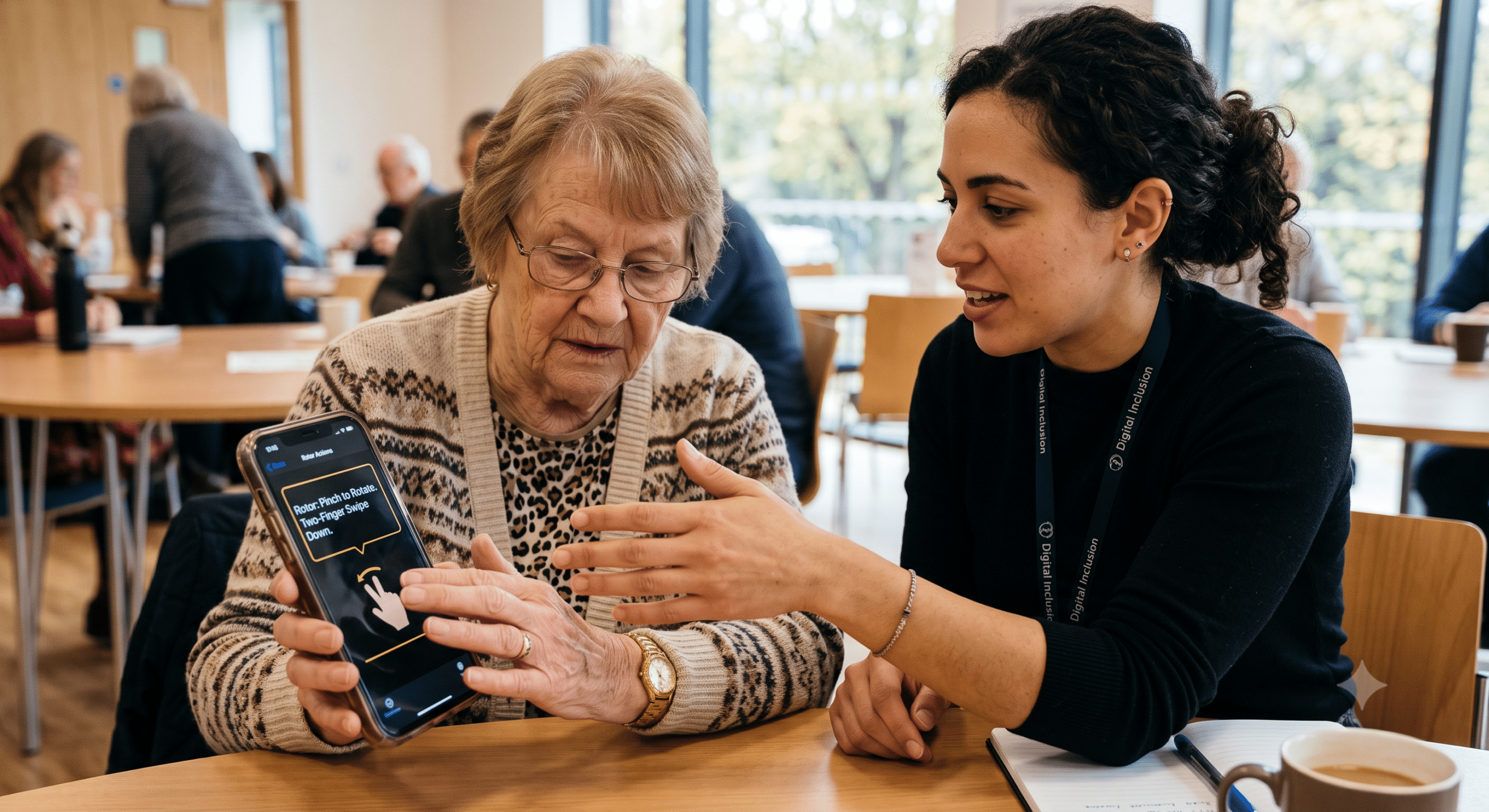
Designing intuitive accessibility gestures has become an indispensable part of modern mobile app development. Today, people routinely use mobile apps to shop, pay bills, book appointments, learn new skills, and stay connected with friends and family. However, not everyone uses a smartphone in the exact same way. Specifically, many users rely on assistive technologies, voice controls, screen readers, or simplified touch interactions because of physical, visual, or cognitive disabilities.
Consequently, this is where implementing these dedicated gestures becomes critically important. They help users interact with mobile apps more easily while simultaneously making sure everyone has equal access to digital experiences. Furthermore, developers who understand how to deploy them effectively can create apps that are easier to use, thereby improving customer satisfaction and seamlessly meeting accessibility standards.
Currently, both Android and iOS provide robust, built-in accessibility features that support different gestures, voice commands, and alternative navigation methods. At the same time, official accessibility guidelines strongly encourage developers to avoid making complex gestures the only way to complete important tasks.
In this comprehensive guide, you’ll learn exactly what these touch options are, why they matter, and the 15 best practices for designing truly inclusive mobile apps.
What Are Accessibility Gestures?
Accessibility gestures are specialized touch interactions designed to help people with disabilities use mobile devices and applications more comfortably.
Typically, these gestures may include:
Single tap
Double tap
Swipe
Long press
Two-finger gestures
Three-finger gestures
Voice-triggered actions
Alternative button controls
Importantly, accessibility gestures often work in tandem with screen readers like VoiceOver on iPhone and TalkBack on Android. Therefore, instead of directly touching an on-screen button, users navigate through elements systematically and activate them using simplified gestures supported by the operating system.
Why Accessibility Gestures Matter
Many users cannot perform complicated physical movements. For instance, interaction barriers frequently arise because of:
Limited hand mobility
Arthritis
Tremors
Temporary injuries
Visual impairments
Neurological conditions
As a result, if an app only works with pinch-to-zoom, drag-and-drop, or complex multi-finger gestures, many users may not be able to complete basic tasks. For this reason, modern accessibility guidance recommends providing simple alternatives whenever possible. Ultimately, a user should never be forced to perform a difficult gesture if another method can accomplish the same task.
How Accessibility Gestures Improve User Experience
Good accessibility benefits everyone—not only people with disabilities. Indeed, permanent or temporary situational limitations affect us all. For example:
Someone carrying groceries may only have one hand available.
An older adult may have reduced finger strength.
A person wearing gloves might struggle with precise gestures.
Someone with a broken arm temporarily needs easier controls.
Consequently, simple interactions create faster, smoother, and more intuitive experiences for all users.
Common Accessibility Gestures on Mobile Devices
Most smartphones already include accessible gestures natively through their operating systems.
Single Tap
This remains the easiest gesture available. As expected, users select an item or activate a standard button with one tap.
Double Tap
Screen reader users commonly use a double tap to officially activate the currently highlighted or selected item.
Swipe Left or Right
This action moves the focus sequentially between interface elements when using active accessibility services.
Two-Finger Swipe
In contrast to a standard scroll, this is often used for scrolling through long pages while screen readers are actively running.
Three-Finger Gestures
Depending on the device, these advanced gestures may control scrolling, zooming, or triggering global accessibility shortcuts.
Voice Commands
Alternatively, users can entirely replace physical touch gestures with voice navigation when the software supports it.
Accessibility Gestures and WCAG
Although the Web Content Accessibility Guidelines (WCAG) were originally created for websites, many of their core principles now apply directly to native mobile applications. Specifically, one important guideline focuses on pointer gestures.
It recommends that if an app requires a:
Pinch
Rotate
Multi-finger touch
Complex path gesture
Then there must also be a simple alternative using a single pointer whenever possible.
15 Best Practices for Accessibility Gestures
1. Keep Gestures Simple
Simple gestures are inherently easier for everyone. Therefore, prefer basic actions like a tap, double tap, or single swipe. Meanwhile, avoid requiring advanced combinations unless they are absolutely necessary.
2. Never Depend on Multi-Finger Gestures
If users must pinch, rotate, or use three fingers to complete an action, you must provide another option. For example, instead of requiring pinch-to-zoom, include dedicated Zoom In and Zoom Out buttons. Accordingly, this follows standard accessibility recommendations for equivalent interactions.
3. Offer Visible Buttons
Some users cannot easily remember hidden gestures. Hence, always include visible controls whenever possible, such as explicit Delete, Share, Menu, or Edit buttons. Ultimately, visible controls drastically improve discoverability.
4. Avoid Gesture-Only Navigation
Hidden swipe menus may look clean, but they frequently confuse users. Instead of relying only on “swipe left to delete” or “swipe right to archive,” also provide clearly visible action buttons.
5. Support Screen Readers
Accessibility gestures work best when apps are fully compatible with TalkBack and VoiceOver. To achieve this, every interactive element should have clear labels, roles, and hints so screen readers can describe them correctly.
6. Make Touch Targets Large
Tiny buttons make gestures incredibly difficult. For this reason, most accessibility experts recommend comfortable touch targets that reduce accidental taps. Furthermore, larger controls benefit users with limited motor skills and improve overall usability.
7. Avoid Time-Limited Gestures
Some apps require users to perform a gesture within a very short period, such as swiping quickly before a menu disappears. Naturally, this can be difficult for people with limited hand movement or slower reaction times. Instead, keep menus open until the user dismisses them and avoid requiring fast swipes or quick taps.
8. Give Clear Visual Feedback
Users should always know that a gesture has been recognized. For instance, ensure a button changes color after being tapped, an item highlights when selected, or a short animation confirms an action. As a result, feedback builds confidence and prevents users from repeating the same gesture unnecessarily.
9. Provide Voice Control Support
Many people cannot use touch gestures comfortably. Therefore, supporting voice commands offers an excellent alternative way to interact with your app. Specifically, ensure actions like “Open Settings,” “Send Message,” or “Play Music” can be triggered via voice navigation.
10. Don’t Hide Important Features Behind Gestures
Many modern apps use hidden gestures to keep the interface clean. While this may look attractive, it creates immense problems for users who never discover those features. Consequently, if a feature is important, users should be able to find it without guessing.
11. Test With Accessibility Features Enabled
Developers should regularly test apps using built-in accessibility tools instead of assuming everything works. In particular, useful testing includes utilizing VoiceOver, TalkBack, Voice Control, and Switch Access. By doing so, you will often reveal issues that are easy to overlook during normal app development.
12. Keep Gesture Behavior Consistent
Users quickly learn how gestures work. Conversely, changing them throughout the app creates massive confusion. For example, if swiping left deletes an item on one screen, it should not archive an item on another screen unless there is a very clear reason.
13. Avoid Gesture Conflicts
Some custom gestures can interfere with system accessibility features. For example, a custom three-finger swipe may already be reserved by a screen reader. Therefore, before adding custom gestures, developers must verify they do not override system accessibility controls.
14. Explain Gestures Clearly
If your app includes unique gestures, explain them in simple language. To do this, good onboarding can include short animations, small illustrations, or help screens. However, avoid long instructions, as most users only need a quick explanation.
15. Follow Platform Accessibility Guidelines
Both Apple and Google publish extensive accessibility recommendations for mobile developers. Specifically, these guidelines explain how to label interface elements, support screen readers, and design accessible layouts. Consequently, following official guidance helps developers build apps that work well across all devices.
Common Accessibility Gesture Mistakes
Even experienced developers can accidentally create barriers for users. In particular, some of the most common mistakes include:
Making Swipe the Only Option: If deleting an email requires only a swipe gesture, some users may never be able to complete the task. Instead, always include a Delete button as an alternative.
Using Small Touch Areas: Buttons that are too small increase accidental taps and make navigation frustrating. On the other hand, larger touch targets improve both accessibility and usability.
Ignoring Screen Reader Navigation: An app may look perfect visually but become impossible to use if elements are unlabeled. Therefore, developers should verify that every interactive control has a meaningful accessibility label.
Requiring Complex Finger Movements: Gestures like pinch, rotate, or a three-finger drag should never be the only way to perform important actions. Instead, offer simple alternatives.
Hiding Important Actions: Users should not have to guess that long pressing an item reveals additional options. Indeed, visible controls dramatically improve discoverability.
Accessibility Gestures Across Platforms
On Android
Android provides several accessibility tools that rely heavily on gestures, including TalkBack navigation, Switch Access, Voice Access, and Magnification gestures. Accordingly, developers should test apps with these features enabled to ensure gestures remain predictable. Furthermore, Android encourages developers to expose actions through standard interface controls rather than relying solely on custom gestures.
On iPhone
Similarly, iOS offers a wide range of accessibility features that simplify navigation, such as VoiceOver gestures, Voice Control, AssistiveTouch, and Switch Control. Because many users customize these settings based on their personal needs, apps that respect Apple’s accessibility APIs generally provide a smoother, more natural integration.
How to Test Accessibility Gestures
Testing should be a core part of every development cycle rather than something done at the very end of a project. To get started, a practical testing checklist includes:
Try using the app entirely with one hand.
Turn on VoiceOver or TalkBack and navigate without looking at the screen.
Check that every custom gesture has an accessible alternative.
Verify buttons are easy to tap and targets are large enough.
Test on different screen sizes and ask users with disabilities to provide feedback.
Ultimately, real-world testing often uncovers usability issues that automated tools cannot detect.
Accessibility Benefits Businesses Too
Designing with accessibility gestures in mind is not only the right thing to do—it also makes great business sense. Specifically, the benefits include:
Higher customer satisfaction and better app ratings.
Fewer customer support requests.
Improved usability for older adults and first-time users.
Stronger compliance with legal accessibility requirements.
A significantly broader potential audience.
In short, an accessible app is simply easier for everyone to use, regardless of age, ability, or situation.
Conclusion
Creating an accessible mobile app is no longer optional. Millions of people depend on accessibility features every day to communicate, work, shop, learn, and manage their daily lives. Therefore, when developers design with accessibility gestures in mind, they remove barriers that prevent users from fully enjoying an app.
Fortunately, improving accessibility does not require rebuilding an entire application from scratch. Instead, small changes—such as providing visible buttons, supporting screen readers, increasing touch target sizes, and offering simple alternatives—can make a significant difference.
Ultimately, accessibility is also a smart business decision. Inclusive apps often receive better user feedback, reach a wider audience, and reduce support requests. As a result, keeping accessibility at the center of your design process benefits every single user. Consequently, by making accessibility gestures easy to understand and use, you create mobile experiences that are welcoming, intuitive, and enjoyable for everyone.
Frequently Asked Questions (FAQ)
What are accessibility gestures?
Accessibility gestures are touch interactions designed to help people with disabilities operate smartphones and mobile apps. Typically, they work with assistive technologies such as screen readers, voice control, and switch devices.
Why are accessibility gestures important?
They allow users with limited vision, reduced mobility, or cognitive disabilities to navigate apps more easily. Furthermore, well-designed gestures improve usability for all users, including older adults and people using their phones with one hand.
What is an example of an accessibility gesture?
Common examples include a double tap to activate a selected item, a swipe left or right to move between elements, or using voice commands instead of physical touch.
Should apps rely only on swipe gestures?
No. Important actions should never depend only on swipe, pinch, or multi-finger gestures. Instead, developers should always provide simple alternatives, such as visible buttons or menu options.
Are accessibility gestures required by WCAG?
Yes, WCAG recommends that functions requiring complex pointer gestures also provide a simple alternative. Consequently, this helps ensure users with different abilities can access the same features without unnecessary barriers.
How can developers test accessibility gestures?
Developers should enable VoiceOver on iPhone or TalkBack on Android, test with Voice Access, verify all buttons have accessibility labels, and ensure touch targets are large enough. In addition, including people with disabilities in usability testing is highly recommended.
Do accessibility gestures improve SEO?
While accessibility gestures themselves are not a direct search ranking factor, accessible mobile apps and websites provide a much better user experience and improve engagement. As a result, these factors contribute to stronger overall digital performance.
What are the most common accessibility gesture mistakes?
Some frequent mistakes include requiring multi-finger gestures, using gesture-only navigation, creating very small touch targets, forgetting screen reader labels, and hiding important actions behind long presses.
Final Thoughts
The future of mobile development is inclusive. Therefore, every new feature should be designed with accessibility in mind from the beginning rather than added later as an afterthought. When you prioritize accessibility gestures, you make your app easier to navigate, reduce user frustration, and create a better experience for every user. Ultimately, inclusive design is not just about meeting standards—it is about building technology that works beautifully for everyone.
References
The following high-authority resources provide in-depth guidance on mobile accessibility, accessibility gestures, and inclusive app design:
Android Developers – Accessibility Principles
Apple Developer – Accessibility
Apple Human Interface Guidelines – Accessibility
Deque Systems Blog – Mobile Accessibility Best Practices
TPGi Insights – Accessibility Articles and Mobile Accessibility Resources
WebAIM – Articles on Digital Accessibility
Level Access Resource Center – Digital Accessibility Resources